Writing
Google Cloud AutoML for Medical Image Classification
10 May 2019Updated 14 October 20268 min read
This article uses AutoML image classification on Google Cloud to build a model that detects pneumonia in chest X-ray images. It covers getting the data into Cloud Storage, preparing the import file, training, evaluation and testing.
Pneumonia Detection using Chest X-Ray Images
AutoML on Google Cloud makes it simpler to build custom vision models for image recognition. AutoML searches for a good network architecture and set of hyperparameters for your data, using techniques such as neural architecture search and transfer learning. This article uses AutoML image classification to build an end-to-end medical image classification model that detects pneumonia in chest X-ray images.
In 2019, this product was called Cloud AutoML Vision. Google retired the legacy AutoML Vision service on July 31, 2024, after AutoML image training moved to Vertex AI. In April 2026, Google renamed Vertex AI to Gemini Enterprise Agent Platform. AutoML image classification is now part of Agent Platform AutoML. The console shows it under Agent Platform.
About the Dataset
The dataset is Chest X-Ray Images (Pneumonia) on Kaggle. It contains 5,863 chest X-ray images in JPEG format from children aged one to five. The images are in two categories, pneumonia and normal. The dataset has three folders: train, test and val. Each folder has one subfolder for each category.
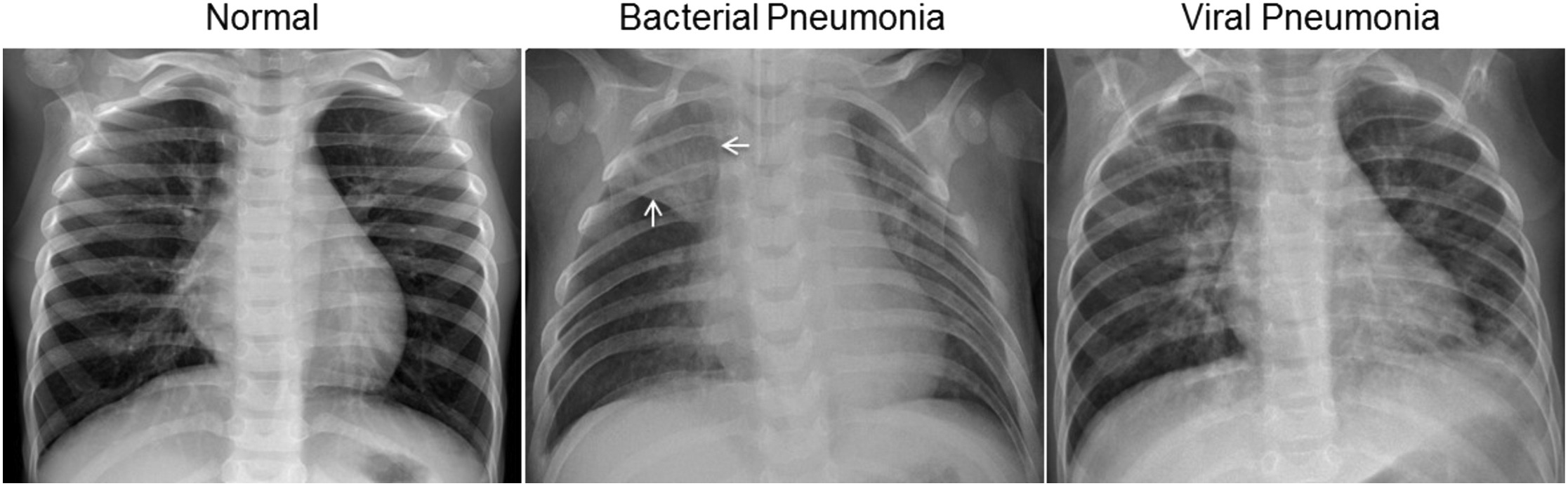
The images come from the study by Kermany, D. S., Goldbaum, M., et al. (2018). Identifying Medical Diagnoses and Treatable Diseases by Image-Based Deep Learning. Cell. In that study, a normal chest X-ray shows clear lungs without any areas of abnormal opacification. Bacterial pneumonia typically shows a focal lobar consolidation. Viral pneumonia shows a more diffuse "interstitial" pattern in both lungs.
Part 1: Set Up the Project
(1). Open the Google Cloud console and select the project you want to use. Billing must be enabled on the project.
(2). Activate Cloud Shell from the toolbar at the top of the console. Cloud Shell is a virtual machine with the Google Cloud CLI already installed. It gives you 5 GB of persistent disk storage in your $HOME directory.
(3). Enable the Agent Platform API. Replace PROJECT_ID with your project ID.
bashgcloud config set project PROJECT_ID gcloud services enable aiplatform.googleapis.com
(4). Create a Cloud Storage bucket to hold the images and the import file. In 2019, AutoML Vision created a bucket for us. Now we create it ourselves. Replace BUCKET_NAME with a globally unique name. We use the us-central1 region in this article.
bashgcloud storage buckets create gs://BUCKET_NAME --location=us-central1
(5). AutoML reads the images through the Agent Platform Service Agent. This is a Google-managed service account that Agent Platform uses to access your data. Grant it the Storage Object Viewer role on the bucket. Replace PROJECT_NUMBER with your project number.
bashgcloud storage buckets add-iam-policy-binding gs://BUCKET_NAME \ --member=serviceAccount:service-PROJECT_NUMBER@gcp-sa-aiplatform.iam.gserviceaccount.com \ --role=roles/storage.objectViewer
Part 2: Download the Dataset to Cloud Storage
We use Cloud Shell to download the dataset from Kaggle, unzip it and upload it to the bucket. If a dataset is too large for Cloud Shell, you can do the same steps on a Compute Engine virtual machine with a larger disk.
(1). Install the Kaggle command-line interface. The current version needs Python 3.11 or later.
bashpip install kaggle
If pip reports an externally-managed-environment error, install the CLI with pipx install kaggle instead.
(2). Create a Kaggle API token. Sign in to Kaggle, go to the API settings page and click Generate New Token. Copy the token and set it as an environment variable in Cloud Shell.
bashexport KAGGLE_API_TOKEN=YOUR_TOKEN
The Kaggle CLI also accepts the token in the file ~/.kaggle/access_token, or sign-in through a browser with kaggle auth login.
(3). Download and unzip the dataset. The --unzip flag deletes the zip file after it extracts the files.
bashkaggle datasets download paultimothymooney/chest-xray-pneumonia -p . --unzip
(4). Upload the images to the bucket.
bashgcloud storage cp --recursive chest_xray gs://BUCKET_NAME/
(5). List the folders in the bucket and note the path of the train folder. We use it in the next part.
bashgcloud storage ls gs://BUCKET_NAME/chest_xray/
Part 3: Prepare the Dataset for Modeling
AutoML imports images from an import file in Cloud Storage. The import file can be a CSV file or a JSON Lines file. Each row of a CSV import file has this format:
text[ML_USE],GCS_FILE_PATH,[LABEL]
ML_USE is optional. It assigns the image to the training, test or validation set. When we leave it out, AutoML splits the data for us. GCS_FILE_PATH is the Cloud Storage URI of the image. LABEL is the class of the image. A label must start with a letter and contain only letters, numbers and underscores.
The data requirements for single-label image classification are:
- Training images can be JPEG, GIF, PNG, BMP or ICO files of up to 30 MB each.
- Images sent for prediction can be JPEG, GIF, PNG, WEBP, BMP, TIFF or ICO files of up to 1.5 MB each.
- Each label needs at least 10 images. Google recommends about 1,000 training images per label.
The data preparation guide has the full list of requirements.
The dataset already stores each class in its own subfolder. The folder name is the label. We use a notebook on Agent Platform Workbench to write the import file.
(1). In the console, open Agent Platform, go to Workbench and open the Instances page. Click Create new, give the instance a name and click Create. Workbench was called AI Platform Notebooks when this article was first written.
(2). When the instance is ready, click Open JupyterLab and open a new Python notebook.
(3). Install the Cloud Storage client library and pandas in the first cell.
python%pip install --quiet google-cloud-storage pandas
(4). Run the following code to create the import file and upload it to the bucket. Set bucket_name to your bucket and train_prefix to the path of the train folder from Part 2.
pythonimport pandas as pd from google.cloud import storage bucket_name = 'BUCKET_NAME' # change this to your bucket train_prefix = 'chest_xray/train/' # change this to the train folder in your bucket client = storage.Client() # one row per image: the Cloud Storage URI and the label rows = [] for blob in client.list_blobs(bucket_name, prefix=train_prefix): if blob.name.lower().endswith(('.jpeg', '.jpg', '.png')): label = blob.name.split('/')[-2] # the folder name is the label rows.append([f'gs://{bucket_name}/{blob.name}', label]) data = pd.DataFrame(rows, columns=['uri', 'label']) print(data['label'].value_counts()) # write the import file without a header row and upload it to the bucket data.to_csv('data.csv', header=False, index=False) client.bucket(bucket_name).blob('data.csv').upload_from_filename('data.csv')
Each row of data.csv holds an image URI and its label, NORMAL or PNEUMONIA.
textgs://BUCKET_NAME/chest_xray/train/NORMAL/IM-0115-0001.jpeg,NORMAL
Part 4: Train the Model with AutoML
(1). In the console, open Agent Platform and go to the Datasets page. Click Create dataset.
(2). Enter a name for the dataset. On the Image tab, select Image classification (Single-label). Set the region to us-central1 and click Create.
(3). Select Select import files from Cloud Storage. Enter the path of the import file, BUCKET_NAME/data.csv, and click Continue. The import takes a few minutes. When it finishes, the Browse tab shows the imported images and their labels. The import may report warnings about some images. Review them before you train.
(4). Click Train new model. Make sure AutoML is selected as the training method and click Continue.
(5). Enter a name for the model and click Continue. Select a model option that suits your accuracy and latency needs.
(6). Under Compute and pricing, set the node-hour budget. The budget is the maximum time the model spends training. It also sets the training cost. The image classification tutorial in the documentation uses 8 node hours. Click Start training. Training takes several hours. Google sends an email when it completes.
Part 5: Evaluate and Test the Model
(1). When training is complete, open the model from the Model Registry page. The Evaluate tab shows how the model performs on the test split. It reports metrics such as precision and recall. Its confusion matrix shows which classes the model confuses. For each class, you can view the test images grouped as true positives, false positives and false negatives.
(2). To test the model, open the Deploy & test tab and click Deploy to endpoint. Select Create new endpoint, give it a name and click Continue. Keep the traffic split at 100%, set the number of compute nodes to 1, click Done and then click Deploy. The deployment takes several minutes.
(3). In the Test your model section of the same tab, click Upload image and choose a chest X-ray image that was not used in training. The images in the dataset's test folder work well for this. The page shows the predicted label. Medical experts can verify the prediction. Remember that images for prediction must be 1.5 MB or smaller.
Your applications can also get predictions from the endpoint through the REST API and the client libraries.
Part 6: Clean Up
A model deployed to an endpoint keeps incurring charges. When you no longer need the model, remove the resources in this order:
- On the Deploy & test tab, undeploy the model from the endpoint.
- On the Endpoints page, remove the endpoint.
- On the Models page, delete the model.
- On the Datasets page, delete the dataset.
- Delete the Cloud Storage bucket.
- Stop or delete the Workbench instance.
Conclusion
This article walked through building a vision model for a custom use case with AutoML on Google Cloud. The model is hosted on Google Cloud as a prediction service. AutoML is a fast way to prototype an image classification model. It helps you decide whether a problem is worth more detailed, hand-tuned modeling. You can use this walkthrough as a template for the vision problems that you care about.
Parts of this article come from my book Building Machine Learning and Deep Learning Models on Google Cloud Platform, published by Apress (Springer Nature).

Ekaba Bisong is a Ph.D. researcher at the University of Victoria and the founder of SiliconBlast. More about me