Kubeflow for Poets · Part 4 of 8
Docker
27 March 2019Updated 14 October 20267 min read
This part explains containers and Dockerfiles. It builds, runs and publishes Docker images, serves a web page with nginx and runs a Jupyter TensorFlow image.
Docker is a platform for building and running applications in isolated environments known as containers. A container packages an application with the software tools and dependencies needed to develop and deploy it.
Traditionally, an application is designed and hosted on a single server. This setup causes several problems, including the familiar "it works on my machine but not on yours". Applications in this setup are also hard to scale and to migrate. The result is high cost and slow deployment.
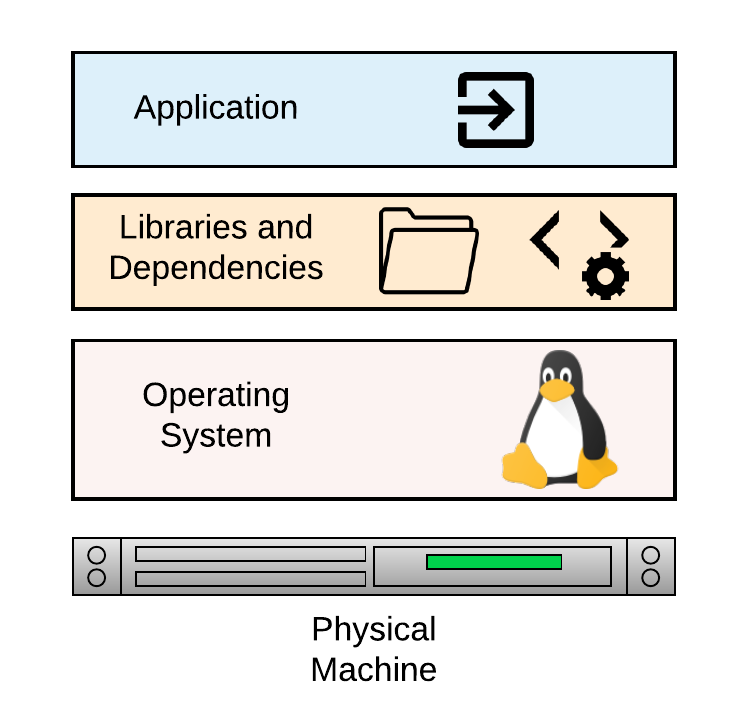
Virtual Machines and Containers
A virtual machine (VM) emulates a physical machine. You can install and run an operating system on it. A piece of software called a hypervisor makes this possible. The hypervisor runs on the physical machine (the host) and creates and manages multiple guest machines.
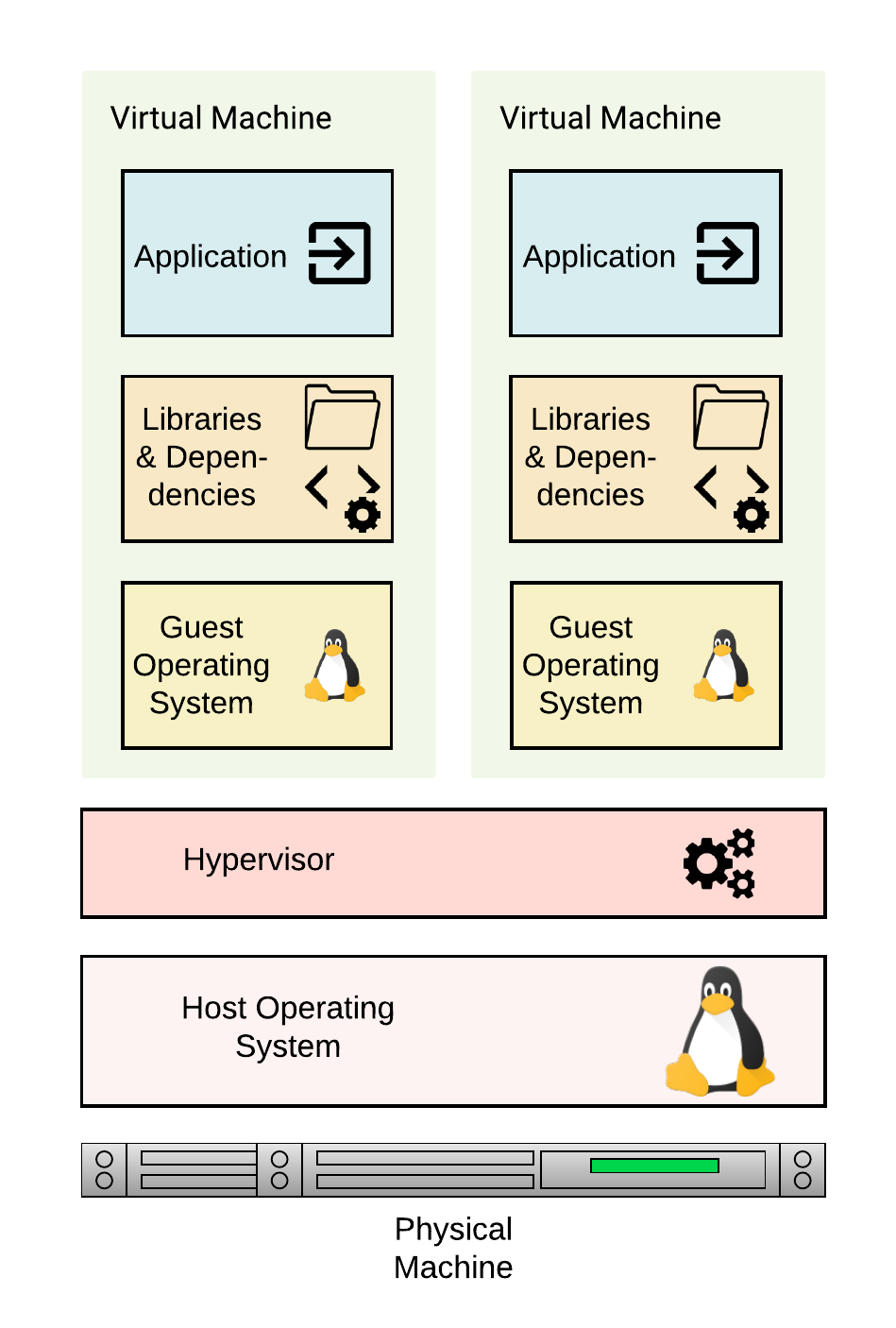
A container also isolates an application with its own libraries and dependencies. Containers on the same machine share the kernel of the host operating system. They do not need a guest operating system. Docker is a tool for building and running containers.
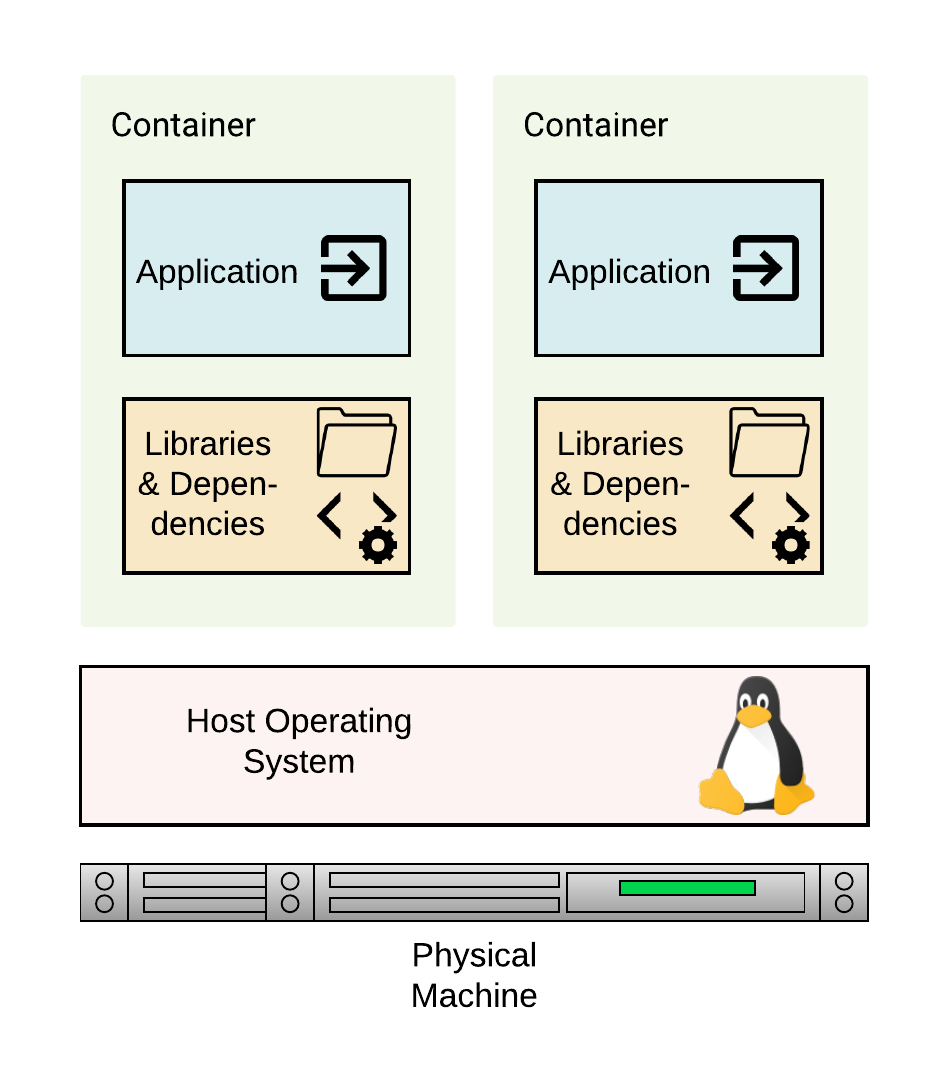
Working with Docker
Install Docker on your local machine to run containers. Docker Desktop runs on macOS, Windows and Linux. On a Linux server you can install Docker Engine instead. The Get Docker page has the download links.
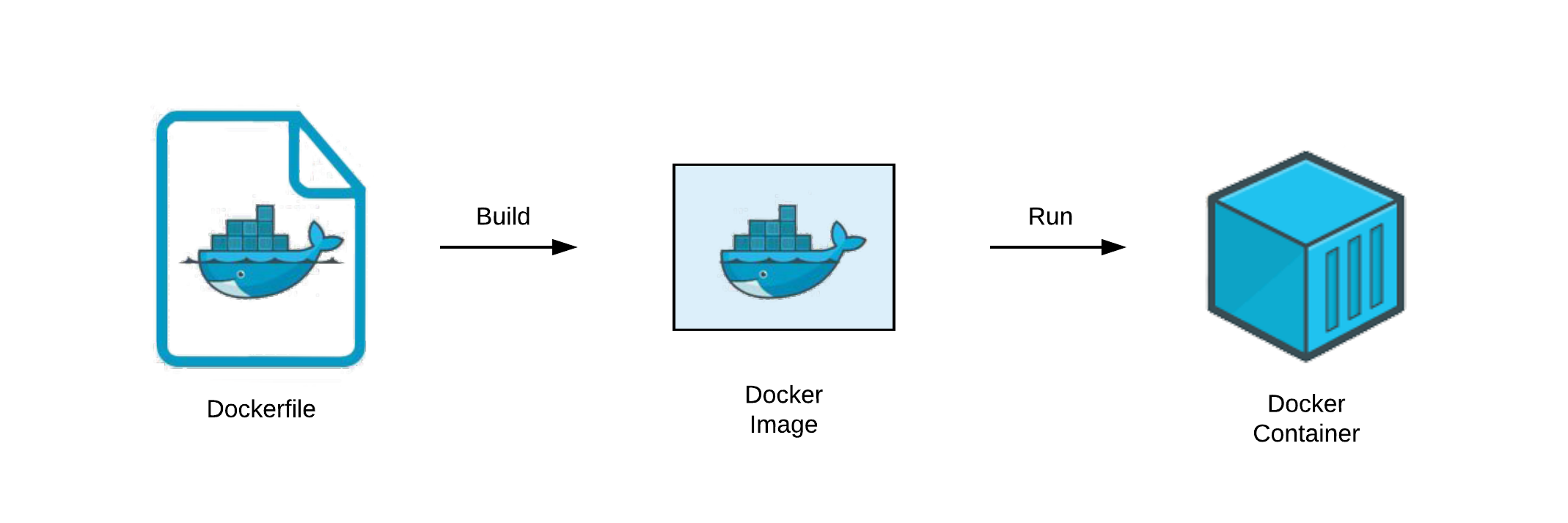
Key concepts to note are:
- Dockerfile: A text file with the instructions for building an image.
- Image: A read-only template built from a Dockerfile. It holds the application and its dependencies.
- Container: A running instance of an image.
The diagram below shows the process of building an image and running a container.
Introducing Docker Hub
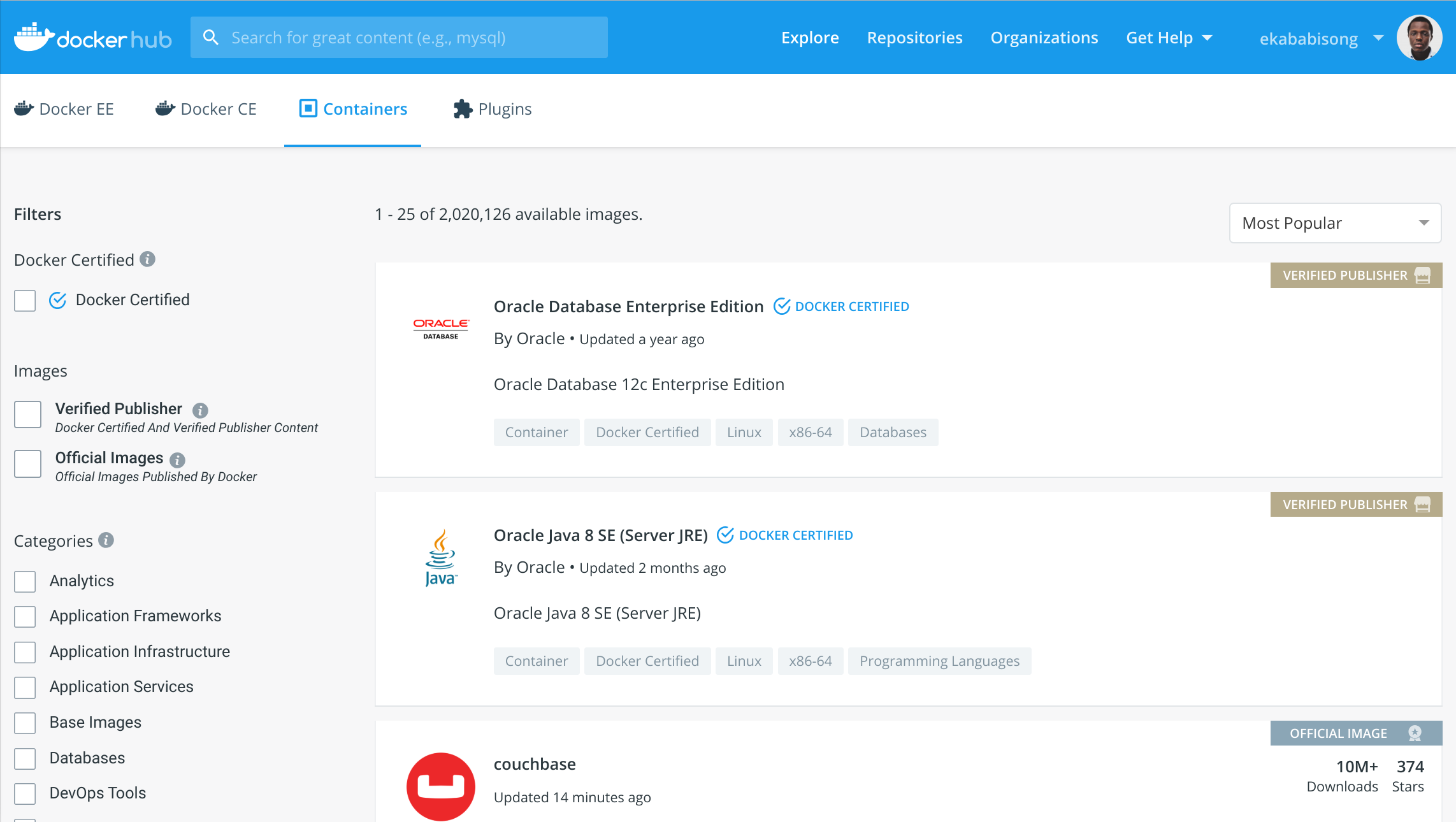
Docker Hub is a registry for storing and sharing container images. It hosts official images such as Alpine Linux and nginx. We use both of these images below.
Key Instructions in a Dockerfile
The following instructions are the ones you use most when writing a Dockerfile.
| Instruction | Description |
|---|---|
FROM |
Sets the base image for the build. |
LABEL |
Adds metadata to the image as key-value pairs. |
RUN |
Runs a command during the build and saves the result as a new image layer. |
COPY |
Copies files from the build context on the local machine into the image filesystem. |
EXPOSE |
Documents the port that the application in the container listens on. Publish the port with -p when you run the container. |
CMD |
Sets the default command that runs when the container starts. A command given to docker run replaces it. |
ENTRYPOINT |
Sets the executable that runs when the container starts. With the exec form, arguments given to docker run are passed to it. The --entrypoint flag of docker run replaces it. |
WORKDIR |
Sets the working directory for the instructions that follow and for the running container. |
VOLUME |
Declares a path in the container as a mount point for data stored outside the container filesystem. You choose the host directory or volume when you run the container. |
ARG |
Defines a build-time variable that you can set with docker build --build-arg. The variable is unavailable in the running container. |
ENV |
Sets an environment variable that is available during the build and in the running container. |
Build and Run a Simple Docker Container
In this example, a shell script named date-script.sh assigns the current date to a variable and prints it to the console. The Dockerfile copies the script from the local machine into the image and runs the script when the container starts. The files are in the docker-intro/hello-world folder of the source repository.
bash# navigate to the folder with the files cd docker-intro/hello-world
Let's view the shell script.
bashcat date-script.sh
bash#!/bin/sh DATE="$(date)" echo "Today's date is $DATE"
Let's view the Dockerfile.
bashcat Dockerfile
dockerfile# base image for building the container FROM alpine # add maintainer label LABEL maintainer="dvdbisong@gmail.com" # copy script from local machine to container filesystem COPY date-script.sh /date-script.sh # execute script CMD ["sh", "/date-script.sh"]
- The image builds on the official Alpine Linux image. Alpine is a small Linux distribution.
- The
CMDinstruction runs the script when the container starts. It uses the JSON array syntax known as the exec form. Docker recommends the exec form forCMDandENTRYPOINT.
Build the Image
bash# build the image docker build -t ekababisong.org/first_image .
Docker prints its progress through each step of the Dockerfile. The image is tagged ekababisong.org/first_image when the build finishes.
Run the Container
bash# list the images on the machine docker images
The list includes ekababisong.org/first_image.
bash# run the docker container from the image docker run ekababisong.org/first_image
The container prints the date and time when it ran, for example:
textToday's date is Sun Feb 24 04:45:08 UTC 2019
Important Docker Commands
Commands for Managing Images
| Command | Description |
|---|---|
docker images |
List all images on the machine. |
docker rmi [IMAGE_NAME] |
Remove the image with name [IMAGE_NAME] from the machine. |
docker rmi $(docker images -q) |
Remove all images from the machine. |
Commands for Managing Containers
| Command | Description |
|---|---|
docker ps |
List running containers. Add -a to also list stopped containers. |
docker stop [CONTAINER_ID] |
Gracefully stop the container with [CONTAINER_ID]. |
docker kill [CONTAINER_ID] |
Forcefully stop the container with [CONTAINER_ID]. |
docker rm [CONTAINER_ID] |
Remove the container with [CONTAINER_ID] from the machine. |
docker rm $(docker ps -a -q) |
Remove all containers from the machine. |
You can use a container name in place of [CONTAINER_ID] in these commands.
Running a Docker Container
Let's break down the following command for running a Docker container.
bashdocker run -d -it --rm --name [CONTAINER_NAME] -p 8081:80 [IMAGE_NAME]
The flags do the following:
-d: Run the container in detached mode. This mode runs the container in the background.-it: Keep standard input open (-i) and attach a terminal session (-t).--rm: Remove the container when it exits.--name: Give the container a name.-p: Publish a container port on the host in the formhost:container.
Serve a Web Page on an nginx Web Server with Docker
The files for this example are in the docker-intro/nginx-server folder of the source repository.
The Dockerfile
dockerfile# base image for building the container FROM nginx # add maintainer label LABEL maintainer="dvdbisong@gmail.com" # copy html file from local machine to container filesystem COPY html/index.html /usr/share/nginx/html # port that the web server listens on EXPOSE 80
The official nginx image serves static files from /usr/share/nginx/html.
Build the Image
bash# navigate to the folder from the root of the repository cd docker-intro/nginx-server # build the image docker build -t ekababisong.org/nginx_server . # list images on the machine docker images
The list now includes ekababisong.org/nginx_server.
Run the Container
bash# run the container docker run -d -it --name ebisong-nginx -p 8081:80 ekababisong.org/nginx_server # list containers docker ps
The docker ps output lists the ebisong-nginx container. Its ports column shows port 8081 on the host mapped to port 80 in the container.
View the Web Page on the Running Server
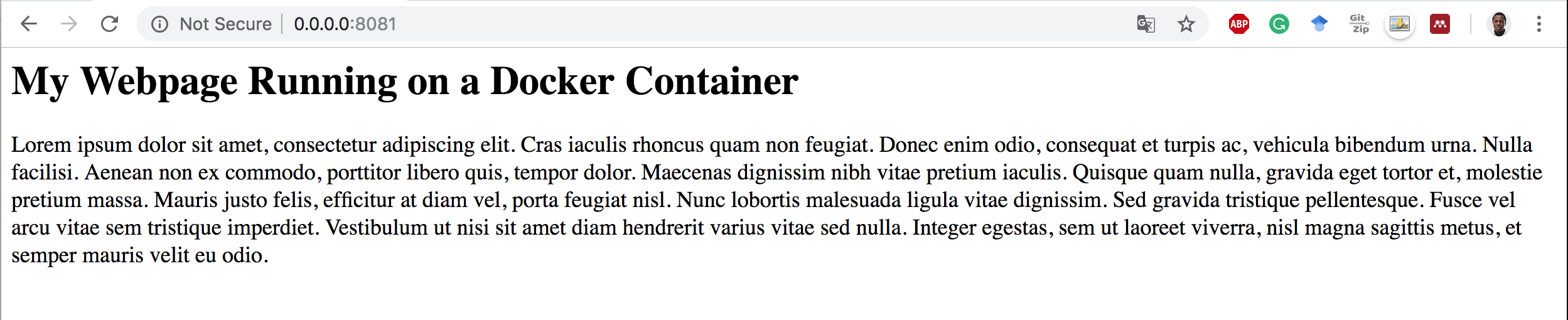
Open a web browser and go to http://localhost:8081.
Clean Up
bash# stop the container docker stop ebisong-nginx # remove the container docker rm ebisong-nginx
Push an Image to Docker Hub
Create a Docker Hub account and log in from the terminal.
bash# log in to docker hub docker login
For Docker Hub, docker login uses a device code flow by default. You confirm a one-time code in your web browser to sign in. To sign in with a username and a personal access token instead, run docker login --username [USERNAME].
Tag the image with your Docker Hub username and push it. Replace ekababisong with your own username.
bash# tag the image docker tag ekababisong.org/nginx_server ekababisong/ebisong-nginx-server:latest # push to docker hub docker push ekababisong/ebisong-nginx-server:latest
Docker uploads the image layers to the ekababisong/ebisong-nginx-server repository on Docker Hub.
Bind Mounts and Volumes
Data written inside a container is lost when you remove the container. To keep data or share files with a container, you mount storage from outside it. Two common options are bind mounts and volumes. A bind mount maps a file or directory on the host into the container. A volume is storage that Docker creates and manages. You attach both with the -v or --mount flag of docker run.
Mount a Local Folder into the Containerized nginx Web Server
Run this command from the docker-intro/nginx-server folder. It bind-mounts the local html folder over the folder that nginx serves.
bashdocker run -d -it --name ebisong-nginx -p 8081:80 -v "$(pwd)/html:/usr/share/nginx/html" ekababisong.org/nginx_server
Any change you make to index.html on your machine now shows in the browser when you reload the page.
Run a Jupyter TensorFlow Image
The Jupyter Docker Stacks project publishes ready-to-run Jupyter images. Since October 2023, the project pushes new images only to the Quay.io registry. The older copies on Docker Hub no longer receive updates.
Pull the Image
Note: This image is large and takes a while to download.
bash# pull the image from quay.io docker pull quay.io/jupyter/tensorflow-notebook
Run the Container
This command starts an ephemeral container that runs a Jupyter Server with the JupyterLab interface on host port 8888. The container is ephemeral because the --rm flag tells Docker to delete it when the server exits. The server logs appear in the terminal. Open the link of the form http://127.0.0.1:8888/lab?token=<token> from the logs in a browser to load JupyterLab.
bash# run the image docker run -it --rm -p 8888:8888 quay.io/jupyter/tensorflow-notebook
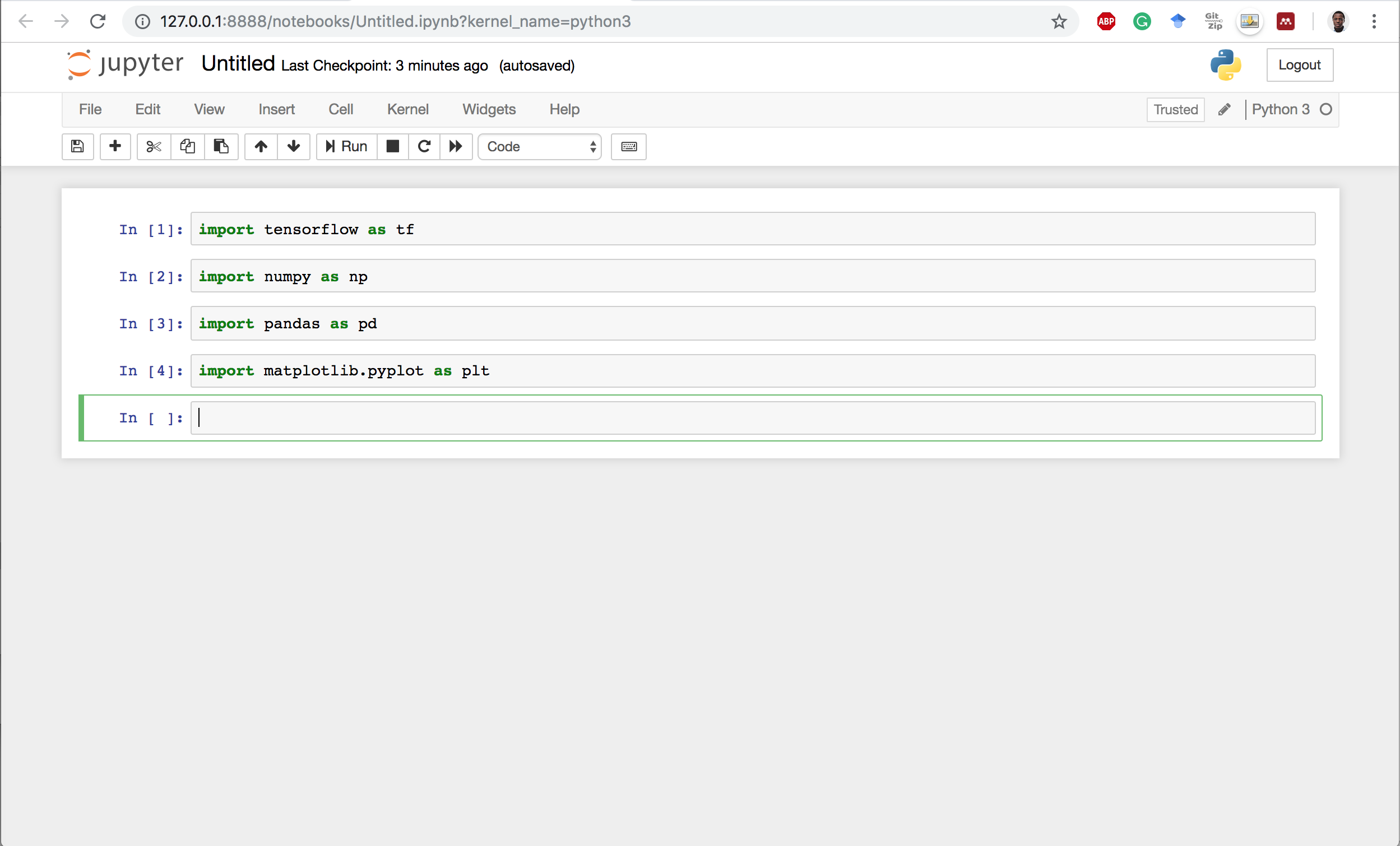
The image below shows a notebook running from an earlier version of this container. The current image opens in JupyterLab. Its interface looks different from the classic notebook in the screenshot.
Press Ctrl+C twice in the terminal to stop the server and reclaim the terminal.

Ekaba Bisong is a Ph.D. researcher at the University of Victoria and the founder of SiliconBlast. More about me